For GA4 web purchase deduplication, send a stable transaction ID for each order: reuse it when the same purchase is sent again, and use a different ID for a different order. Avoid empty or hardcoded identifiers. Inspect event parameters during checkout tests, then reconcile the processed report with the test-order record.
Download the purchase-event QA worksheet. It separates new orders, repeat attempts and invalid payloads. Run it with approved test orders in a test property or your documented QA setup, rather than creating unexplained revenue in live campaign reports.
Give each order a stable transaction identifier
Google's transaction-ID guidance describes purchase deduplication for web streams. Repeated purchase events with the same transaction ID can be deduplicated. That documented behavior does not extend to app streams in the same way.
Use the order's durable identifier. A reload of order QA-1042 should still refer to QA-1042; a genuinely different order needs a different ID. Do not generate a fresh random identifier on every page render. Avoid empty strings, hardcoded examples and identifiers containing personal information.
Write down which system supplies the ID and at which point it becomes final. A cart identifier that changes during checkout, or is reused across orders, needs investigation before it is treated as a transaction key.
Inspect the purchase payload as a complete record
Check the event name, transaction ID, currency, value and item data together. Google's ecommerce implementation guide documents the purchase event and item structure. A stable ID will not repair a wrong currency or a value calculated from the wrong basket.
Here is a fictional payload for one bottle. It illustrates the fields being reviewed; it is not an instruction to send a purchase into your production property.
{
  "transaction_id": "QA-1042",
  "currency": "USD",
  "value": 34,
  "items": [
    { "item_id": "BOTTLE-GREEN", "item_name": "Green bottle", "price": 34, "quantity": 1 }
  ]
}
Record the intended treatment of tax, shipping and discounts according to your implementation. Compare against the documented order totals, not a screenshot of a different checkout stage. If the same order produces different payloads, save both attempts for the developer.
Observe the event on your test device
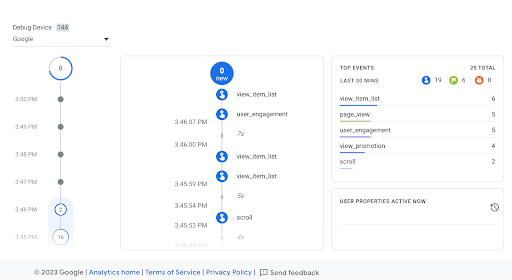
Use Tag Assistant or the approved tag-preview workflow to enable debugging for your own device. Google's DebugView instructions explain where to inspect events and their parameters. Check that you are viewing the intended property and device before troubleshooting a missing purchase.
 View full size
Open the purchase event and inspect the actual transaction ID and values. Consent settings and browser controls can affect collection. Do not interpret a missing event as proof of an ID problem until the collection path is understood.
DebugView helps inspect events. It is not, by itself, proof that finalized revenue reporting will contain exactly the expected orders. Keep payload inspection and processed-report reconciliation as separate checks in the sheet.
Run the repeat and distinct-order cases
Complete the first approved test purchase and record its ID. Reload the confirmation page and reopen the receipt through the ordinary route. Note whether another event attempt occurs and whether it carries the same ID.
Next, complete a separate test order. Confirm that its identifier differs from the first. Also inspect how your code handles an unavailable ID before sending: an empty or placeholder identifier should be a failed implementation check, not a fallback that silently ships.
| Test | Expected implementation behavior |
|---|---|
| Same receipt reloaded | Original order identity stays stable |
| Different order completed | Distinct transaction ID |
| ID unavailable | Investigate before treating the payload as valid |
| Multiple tag paths | Identify which path owns the purchase event |
Do not rely on GA4 deduplication as permission to leave accidental duplicate tags in place. Removing redundant triggers makes the collection path easier to operate and reduces ambiguity when another destination receives the same events.
Reconcile before using revenue in campaign decisions
After processing, compare the test order list with the relevant GA4 reporting under a consistent date range and timezone. Document discrepancies and the evidence available. Differences in consent, filters and reporting scope need their own investigation; they are not all duplicate purchases.
Retest the same cases after a checkout or tag-manager change. Keep the implementation owner, changed version and evidence link with the result. Pair this check with the UTM workflow and conversion-lag review before using ad-attributed revenue to make budget decisions.
Sources checked October 15, 2026. The payload and order IDs are illustrative. No customer orders or Analytics property were modified for this article.
 Google Ads