If HeliosGen cannot connect to Kie.ai, first distinguish a missing local key from a provider rejection. Save the key in Settings, check its restrictions and account limits, then inspect the failed request in Kie logs. A SAVED badge confirms storage, not authentication or a successful generation. Change one setting at a time and keep a short diagnostic record.
Version checked: HeliosGen 1.2.1 source and Kie documentation, October 15, 2026. The settings capture comes from an isolated local run of that release source, with no API key. No paid generation was performed.
1. Check where the failure happens
| Observation | First check | Evidence to keep |
|---|---|---|
| App says no key is configured | Settings, API Keys, Kie.ai | App version and the visible message |
| Key is saved but request is rejected | Key status, restrictions and provider error | Error code and timestamp, never the key |
| Balance or usage-limit message | Account balance and key limits | The limit involved and chosen model |
| A task exists but no output appears | Task state in Kie logs | Task identifier and latest state |
| Only one model fails | App mapping and current model documentation | Model name and request options |
A connection issue does not require rebuilding the whole workflow. Start with the point where a request stops progressing. If you already have a task identifier, continue with the stuck-generation guide.
2. Save the key in the right place
Open Settings, select API Keys, and locate Kie.ai. Paste the token privately and select Save. The labels and saved state are visible in the release's settings component. Its key-storage route stores the value; it does not run a generation to validate it.
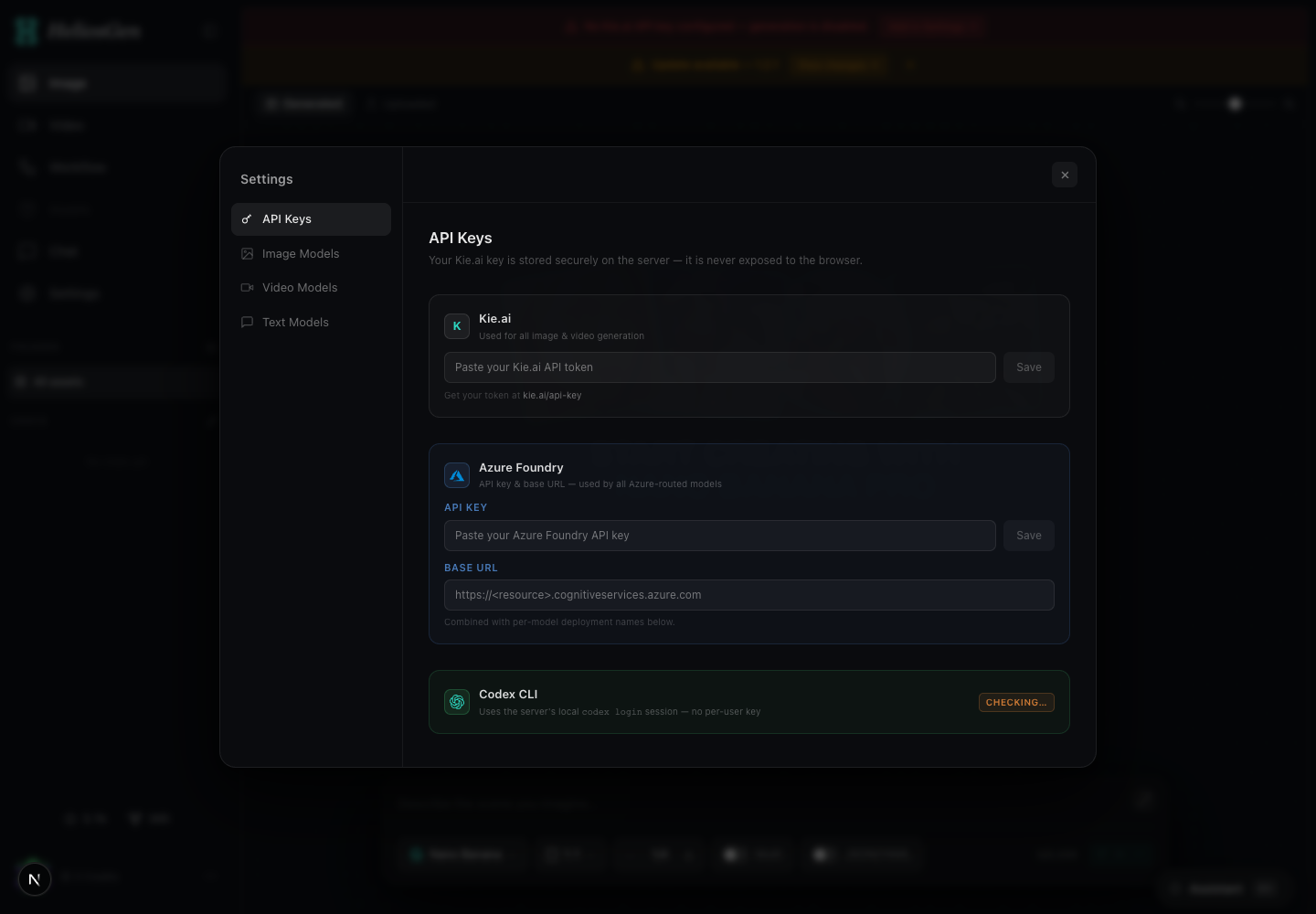 View full size
Reopen the panel and confirm the stored-state indicator. Never paste a key into a workflow note to make it easier to find later. If you share a screenshot with support, keep the credential field out of it.
3. Check the provider account before retrying
Open your Kie API key page. Confirm that you selected the intended key and that it has not been revoked. Inspect any IP restriction and usage cap. A valid key can still be unable to perform the next request because of its configuration or the account balance.
Kie's getting-started documentation explains key restrictions and error responses. For its /api/v1/* endpoints, the JSON body can report an error even when the HTTP response is 200. If you are reviewing a request with a developer, record the body error code and message as well as the HTTP status.
Do not remove all restrictions simply to make an error disappear. Match the configuration to the environment you intend to use and retry only after the reason is understood.
4. Separate authentication from model compatibility
Use a small, already prepared Text-to-Image branch from the starter workflow. Check the model, ratio and required inputs before authorizing a single provider request. That request may consume credits; a saved workflow is not a free generation.
There is a concrete compatibility detail to watch. HeliosGen 1.2.1's Nano Banana 2 configuration maps its quality control to a quality field, while the current Kie request example uses resolution. This source difference does not prove every request fails, but it is worth investigating if credentials work and the model rejects settings. Check the release notes or report the mismatch before repeatedly paying for attempts.
5. Keep a reproducible diagnostic record
Download the connection diagnostic template. Fill in the app version, model, time, visible error, whether a task exists and the single change you made. Use a redacted screenshot if needed.
For example: “Settings shows saved; a request at 09:15 UTC returns an authentication error; no successful output; key restrictions checked; next action is to replace the revoked key.” This is a fictional record format, not a reported outage.
Check Kie logs before retrying. If the provider accepted a task, investigate its state instead of treating the whole attempt as a connection failure. If support needs a task identifier, send it through the provider's private support channel along with the redacted record.
What confirms that the connection is working?
A successful provider task with a usable returned result is stronger evidence than the saved-key badge. Keep that first successful record with your workflow version. Then proceed to prepare product references and expand the creative workflow deliberately.