Prepare HeliosGen product references by choosing clear photographs of the same product version, recording the features that must stay accurate, and connecting the reference to an image-capable model. Start with one image and one simple scene. A reference guides generation but does not guarantee product fidelity, so compare the returned asset with the original before creating more variants.
Version checked: HeliosGen 1.2.1 source, October 15, 2026. The backpack brief is an original worked example, not a paid generation or a campaign result. If the app is not connected yet, start with the Kie.ai setup guide.
1. Choose a reference that answers the brief
Use an authorized photograph of the exact SKU and color you intend to advertise. For a fictional commuter backpack, a front three-quarter view can show the outer pocket, strap shape and main silhouette. A dramatic lifestyle photograph may hide those details and make review harder.
Keep a separate close-up when a feature matters to the claim. Do not combine different product generations, colorways or accessories in a reference pack without explaining their roles. If the brief needs a feature that none of your photographs shows, obtain the missing photograph first.
Record the source filename and product version. Keep an untouched original beside any working copy. This gives a reviewer a stable comparison even after several people have edited the brief.
2. Write what may change and what must stay fixed
Download the reference-pack specification. It includes a filled example and a blank brief.
For the backpack exercise, the pocket layout, strap construction, material and color stay fixed. The desk, background and lighting may change. Accessories, extra compartments and performance claims must not appear simply because they make the image more attractive.
Use an explicit scene instruction:
Use the supplied commuter-backpack photograph as the product reference.
Keep its visible shape, pocket positions, straps, material and color.
Place it on a plain desk beside a window with soft daylight.
Do not add pockets, accessories, a person, text or logos.
Leave clear space above the bag for copy added later in our editor.
If a product detail is unclear, do not invent it.
This prompt expresses the production requirements; it does not guarantee that a model follows them. Keep the instruction beside the output so a reviewer can identify a missed requirement without guessing what the creator intended.
3. Connect the reference to the right node
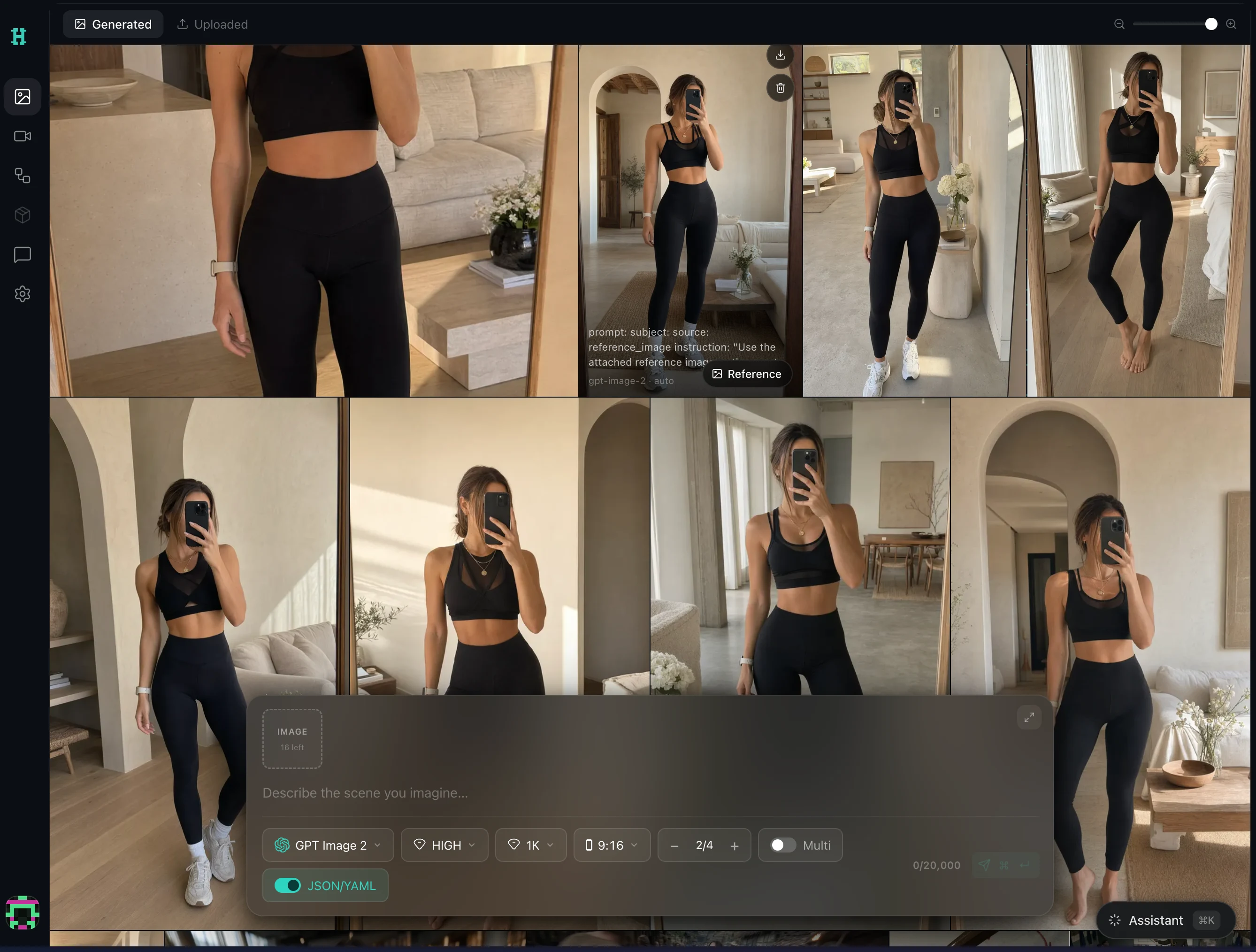
HeliosGen 1.2.1 provides a Reference Image node with upload or URL input, as defined in its node catalog. Add the reference and a Text node, then connect both to an Image node that supports reference images.
The release's model configuration marks Nano Banana 2 as reference-capable. Other models have different capabilities and limits. A model being available in a provider's catalog does not mean your installed app already maps its parameters correctly.
 View full size
Start with a single reference even if the model allows more. It is easier to diagnose a wrong product detail when you know exactly which image the request used. Expand the pack only when another view supplies necessary information.
4. Check upload and model compatibility
A photograph visible on your computer is not automatically reachable by the generation service. The release's Kie upload helper uploads local references to temporary provider storage. This workflow sends the selected media outside the desktop app.
If a reference fails to load, check the upload result before rewriting the prompt. A signed URL may have expired, a file may require authentication, or the upload may have failed. Recheck the selected model's current provider documentation for its request requirements. Avoid treating one model's image limits as a rule for all models.
The connection troubleshooting guide also documents a parameter-mapping difference between release 1.2.1 and the current Kie example. Keep the app version and selected model in your reference brief.
5. Review one output before branching
Compare the result with the original at full size and at the intended ad size. Check the outline, seams, pocket placement, label, color and any object that could imply an included accessory. Reject a visually appealing image if it changes the product.
If the model repeatedly alters important details, generate a background and place the real product photograph into it in your editor. For SaaS, use an authentic application screenshot for readable interface details and generate only the surrounding scene.
Once an asset passes review, change one scene variable per branch and record the prompt version. The prompt-versioning guide provides a fuller production record. Finish with the HeliosGen export and approval workflow so the approved files are clear to the person preparing the ads.