 AI & automation
To connect Kie.ai to HeliosGen 1.2.1, open Settings, then API Keys, paste your token in the Kie.ai section and select Save. Import the starter workflow below and generate one Image node to check the connection. A saved key alone does not confirm valid credentials, available credits or a successful provider request.
Version checked: HeliosGen 1.2.1, with public documentation and release source reviewed on October 14, 2026. This is an AI-assisted, source-checked walkthrough; we have not run a paid generation or measured campaign results. The creative brief below is our worked example.
1. Get the desktop app and your Kie.ai key
For this walkthrough, you need an Apple Silicon Mac, a Kie.ai account with enough credits for your selected model, and one product image you are allowed to use. Start with a public product photograph rather than a customer asset.
- Open the official HeliosGen 1.2.1 release. Its published installer is
HeliosGen_1.2.1_aarch64.dmgfor Apple Silicon. Download that file and install the application. - Sign in to Kie.ai and open the API key page. Create a key for this workflow and copy it privately.
- Check the current model pricing and your available credits before generating. The app and the generation service have separate costs: installing HeliosGen does not make provider requests free.
Using Windows, Linux or an Intel Mac? Check the latest release assets for a compatible build. The 1.2.1 release linked above does not supply one. The maintainer's build instructions are the alternative for developers.
Older tutorials may describe a browser-based installation. Follow the instructions for your actual version. The project's desktop quickstart explains the packaged app setup.
2. Connect Kie.ai inside HeliosGen
AI Business Systems. Excerpt: 0:00 to 1:42.
Playing loads YouTube and may use cookies.
Launch the app and open Settings, then API Keys. In the Kie.ai section, paste your token and select Save. The interface should display SAVED and mask the value. These labels are checked against the settings implementation in release 1.2.1.
That badge confirms the key was stored. It does not prove that the key is valid, that your balance is sufficient or that a model request will succeed. The first generation is the connection check.
Keep the key out of prompts, screenshots and shared briefs. Kie supports key-level usage caps; choose a cap suitable for your initial evaluation. Its getting-started documentation also links to task logs and explains how to inspect failed requests.
For a saved key that still fails, follow the connection diagnostic. It separates authentication, account limits and model compatibility.
3. Import the reusable workflow
Download the WhatWins HeliosGen workflow ZIP. Use the workflow import control in HeliosGen and select the ZIP. The file contains five original Text-to-Image branches, ten nodes and five connections, with no API keys, reference photos or generated outputs. The included README lists the assumptions.
We tested the ZIP against the actual 1.2.1 importer, exported the result and imported it again. The nodes, connections and supported settings survive that round trip. Paid provider generation has not been tested. Check your key, credits and current provider compatibility, then generate just one branch first.
The file uses Nano Banana 2 at 1K and 3:4, a ratio listed in the 1.2.1 app configuration. A previous version of this guide incorrectly said 4:5 for this model. If you need 4:5, crop the approved output in your editor and inspect the result.
At the Kie price checked on October 14, 2026, one 1K image costs $0.04, so five successful images total $0.20 before retries, editing and ad spend. Review the provider's current price before running the canvas.
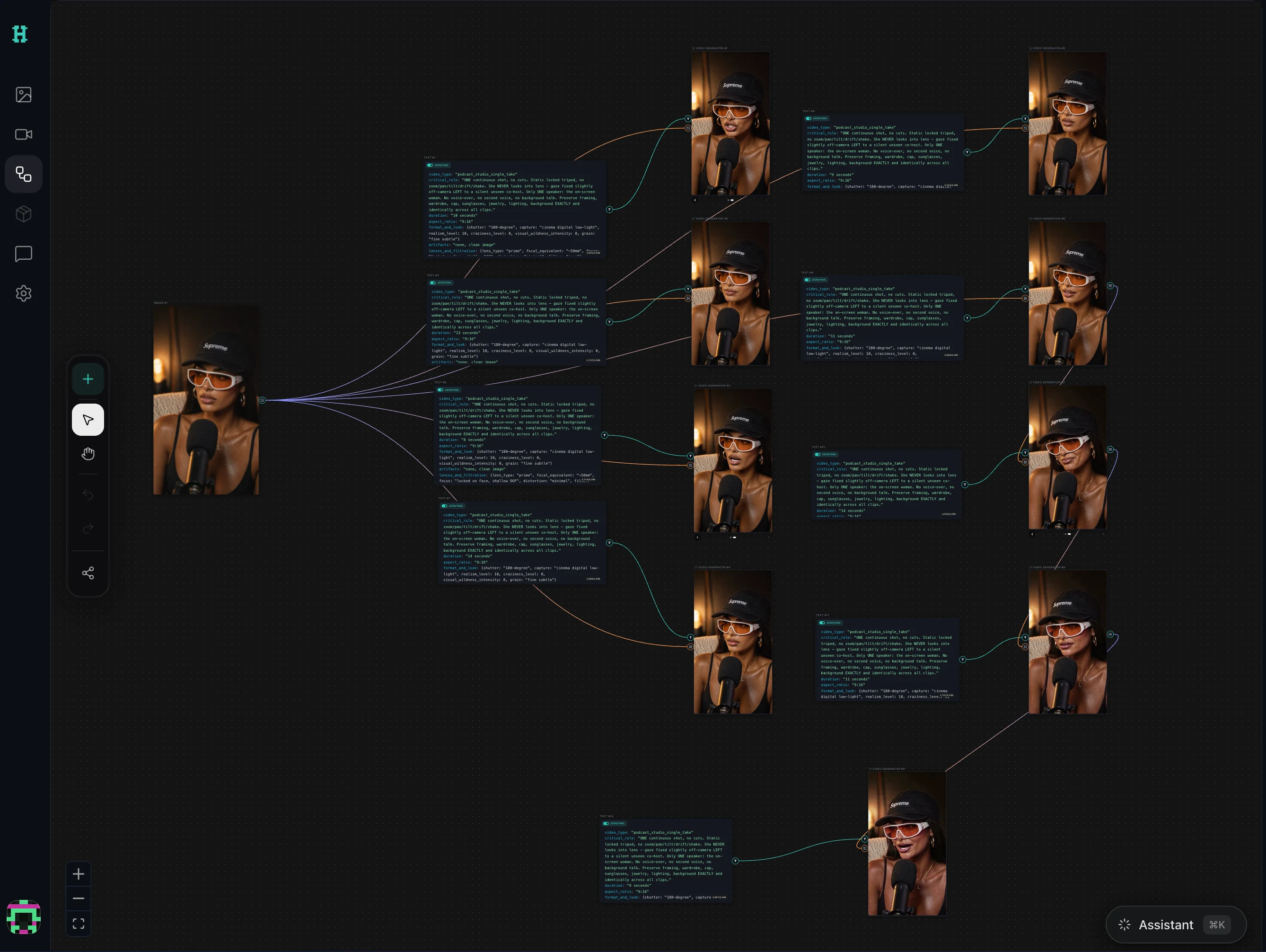 View full size
Build the first branch yourself
Start with a single image before adding video, batches or multiple models. On the canvas, use the plus control, labelled Add node, to add a Text node and an Image node. Connect the text output to the image node's prompt input.
Select the image node to expose its controls. Choose Nano Banana 2, then a 3:4 aspect ratio for this example. The node catalogue confirms the Text and Image labels; the model configuration lists this model and ratio. Model availability and pricing can change independently of the app.
Paste this original example into the Text node:
Create a vertical 3:4 background for
an ecommerce ad.
Scene: a tidy commuter desk with a
closed laptop and a canvas bag.
Leave a clear, uncluttered area in the
lower centre for a product photo.
Use natural morning light and a
neutral colour palette.
Leave the upper quarter clear for a
headline added later.
Do not add text, logos, people or
invented product features.
The visual should communicate an
organised morning commute.
Select Generate on the Image node. Wait for that request to finish before submitting another. The expected checkpoint is an image appearing on the node, with a corresponding task in Kie.ai logs. Compare the model, status and credit usage there.
A background is a useful first test because you can place an accurate product photograph on top in your editor. You can evaluate composition without asking the model to reproduce packaging, labels or interface text perfectly.
4. Add a product reference, then make controlled variants
For a reference-based version, open Add node, choose Upload, and select your approved product image. Connect that image node's output to the Image generator's image input. Keep the Text connection in place. These connections are implemented in the image generator, and Upload is available in the add-node menu.
Replace the background-only instruction with: “Use the supplied product reference as the subject. Preserve its visible shape, label and colours. Place it in the lower centre of the scene. Do not invent accessories or claims.” Treat this as a direction to review, not a guarantee of exact reproduction. Kie's Nano Banana 2 documentation describes the supported reference-image inputs and output settings.
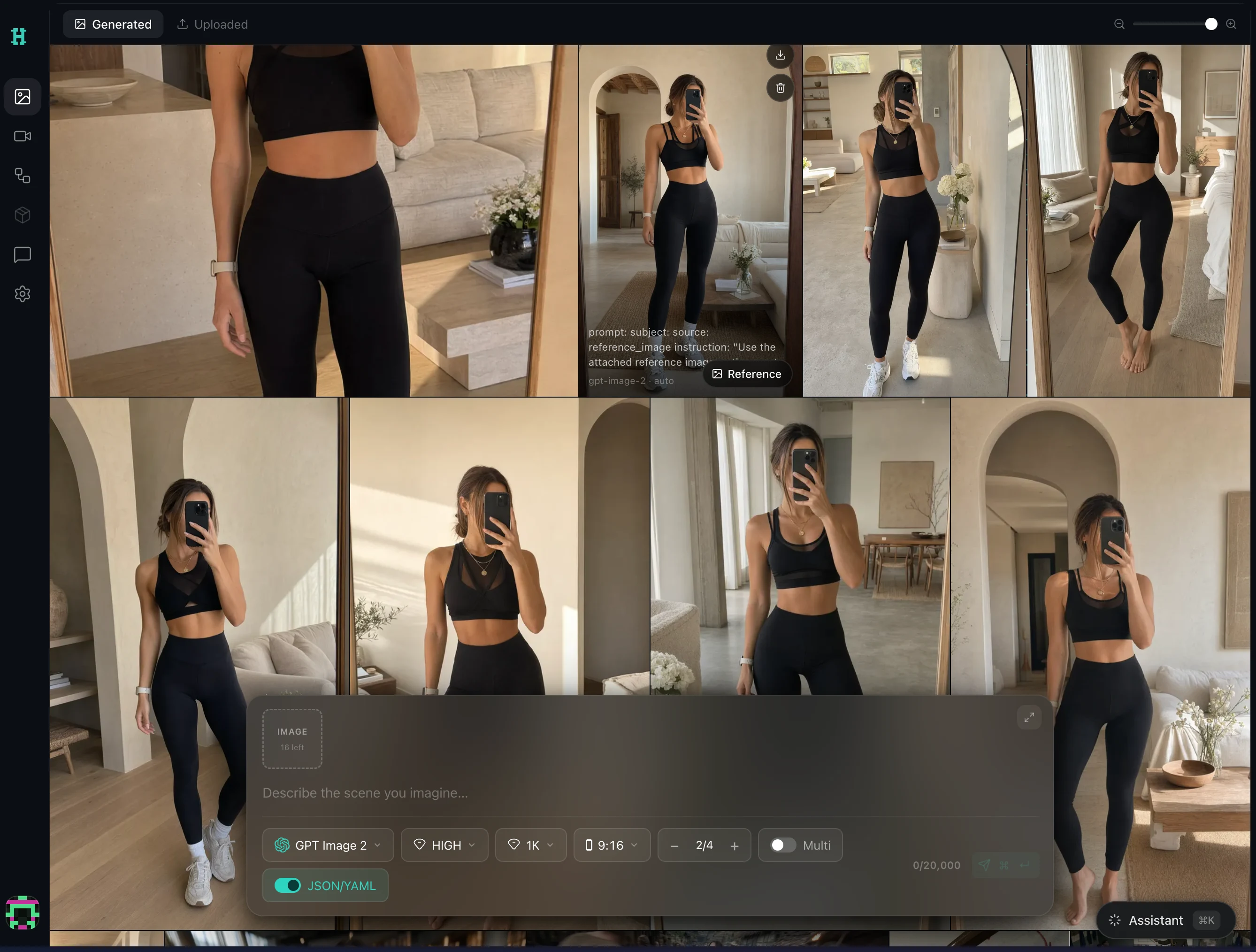 View full size
Our example brief is a commuter product with one approved offer. Keep that offer and the eventual headline fixed. Explore one visual direction per variant:
| Variant | Change | Keep fixed |
|---|---|---|
| A: product focus | A plain studio setting | Product reference, offer, headline, format |
| B: use context | The morning commuter desk | Product reference, offer, headline, format |
| C: travel | A simple travel setting | Product reference, offer, headline, format |
| D: home | A quiet home setting | Product reference, offer, headline, format |
| E: detail focus | A closer crop of one visible detail | Product reference, offer, headline, format |
Save each prompt, model choice and downloaded output under a distinct name, such as commuter-context-b-01. Record failed attempts too, so your production cost includes everything needed to obtain an approved asset.
For SaaS ads, adapt the same process by generating the surrounding scene and adding an authentic application screenshot in your editor. Keep readable UI text and product claims grounded in the actual software.
Before adding a product photo, use the reference-image preparation guide to define the product details that must remain accurate.
5. Fix the first failed request
Use the specific error and task record to decide what to change. Avoid repeatedly clicking Generate while an earlier request is still processing.
| What you see | What to check next |
|---|---|
| Key saved, but an authentication error | Check the key in Kie, replace an invalid or revoked key, and inspect any IP restrictions. |
| A credit or usage-limit error | Check your balance, key cap and the selected model's current price. |
| Generate unavailable or a missing-input warning | Confirm the Text node contains a prompt and is connected; check the key and any reference upload. |
| A request stays pending | Find the task in Kie logs before submitting it again. |
| An image appears but the product is inaccurate | Reject that output; simplify the scene or use the background-only workflow with the real product photo. |
The provider documentation explains task status and error responses. The generation controls explain the app's input checks. Local desktop storage does not mean generation runs offline: this workflow submits requests to Kie.ai.
If a task remains pending or the app times out, follow the stuck-generation check before submitting another request.
6. Turn approved assets into an ad test
Review the product shape, labels, headline space and crop on a phone. Add final copy in your editor, then use the free ad copy checker for supported text limits. Keep an existing approved creative as your control.
Before moving into campaign work, write a brief with the audience, offer, five asset filenames, destination URL, planned spend and success metric. The creative test budget calculator helps explore the budget assumptions; the ads testing playbook gives you a reusable planning document.
AdRails is the next step for supported Meta and Google Ads campaign work. Bring the approved assets and brief into that process, then review campaign settings before applying changes. Our AdRails workflow guide explains that handoff. This is a manual workflow, with no claimed direct HeliosGen integration.
Judge this first session on whether you can reproduce and approve an asset at an acceptable production cost. Judge the creative's advertising value later, using campaign evidence and the business outcome you defined in the brief.
Use the export and approval workflow to verify the source ZIP, keep approved filenames clear and prepare the campaign handoff.